
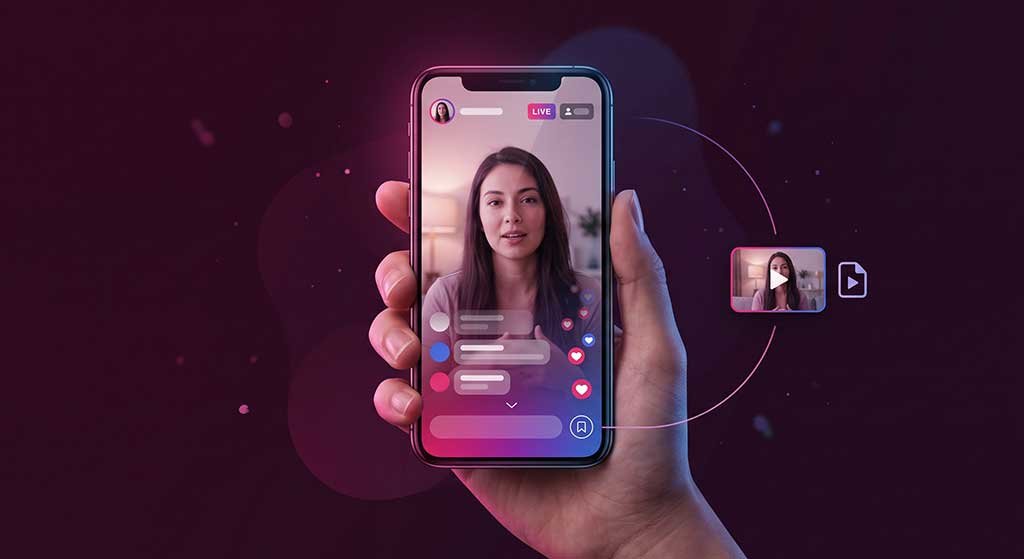
TikTok LIVEs disappear the moment a creator ends the stream. Unlike regular TikTok videos, there is no save button, no automatic replay, and no way to rewatch a LIVE after it ends — unless you captured it yourself while it was happening. If you are in the middle of a LIVE and want to keep it, you need to act now, because once it ends, that content is gone.
Here are the methods that actually work, what their limitations are, and what to do if you arrived after the stream already ended.
Why TikTok LIVE Videos Are Harder to Save
Regular TikTok videos are stored as static files on TikTok’s servers — they can be downloaded any time the video is up. TikTok LIVEs are different: they are streamed in real-time over RTMP or HLS protocols, delivered in small sequential chunks rather than as a complete file. Once the stream ends, TikTok does not automatically retain a playable archive for viewers.
Some creators choose to save a replay of their own LIVE, but that replay is at the creator’s discretion and is not always made available. As a viewer, you cannot trigger or request a replay.
Method 1: Screen Record While the LIVE Is Happening
The only fully reliable method to save a TikTok LIVE as a viewer is to screen record your device while the stream is running. This captures everything visible on your screen in real time, including the LIVE video, chat overlay, and any on-screen effects.
On iPhone
- Add Screen Recording to your Control Center if it is not already there: go to Settings → Control Center and tap the + next to Screen Recording.
- Open the TikTok app and join the LIVE you want to save.
- Swipe down from the top-right corner to open Control Center.
- Tap the Screen Recording button (circle with a dot inside). A 3-second countdown starts.
- Swipe up to close Control Center. The LIVE continues with recording active — a red status bar confirms it.
- When you want to stop, tap the red bar at the top of the screen and confirm Stop. The recording saves to Photos.
Note on audio: iPhone screen recording captures device audio by default, which includes the LIVE audio. Make sure your phone is not on silent mode if you want audio in the recording.
On Android
Most Android phones have a built-in screen recorder. The location varies by manufacturer:
- Samsung: Swipe down twice to expand the Quick Settings panel. Tap Screen recorder.
- Google Pixel: Swipe down to Quick Settings, tap the Screen record tile (you may need to add it by tapping the pencil/edit icon).
- Other Android: Check Quick Settings for a screen recorder tile. If none exists, search Settings for “screen record.”
Start the screen recorder before or during the LIVE. Android screen recorders typically capture device audio. Stop the recording when the LIVE ends or when you have captured what you need — the file saves to your gallery.
On a Computer (TikTok Web)
If you watch TikTok LIVEs in a browser:
- Windows: Press Windows + G to open Xbox Game Bar. Click the Record button in the Capture widget, or press Windows + Alt + R to start recording immediately.
- Mac: Press Command + Shift + 5 to open the Screenshot toolbar. Choose “Record Entire Screen” or “Record Selected Portion,” then click Record.
Method 2: Ask the Creator
Some TikTok creators routinely save their LIVEs and post them as regular videos or make them available as replays. If a creator you follow regularly goes LIVE, check whether they have a habit of posting the replay afterward. You can also comment during the LIVE or DM the creator to ask if they plan to share a replay.
This is not a guarantee, but for creators who regularly host long educational or entertainment LIVEs, replay posting is common.
What Happens After the LIVE Ends?
Once a creator ends their LIVE, the stream becomes inaccessible to viewers immediately. There is no grace period to rewatch or download after the fact. If you did not record it while it was live, the content is gone from your perspective as a viewer.
Creators have a separate option: TikTok gives creators the ability to save a replay of their own LIVE to their profile. If the creator saves the replay, it appears on their profile as a regular video that you can watch and save like any other TikTok. That creator-saved replay can be downloaded through ClipSaver.pro if you want to keep it.
For more on saving LIVE content after a stream has already ended — including how to find creator-saved replays — see our guide on how to save TikTok LIVE videos after the stream ends.
Tips for Better LIVE Recordings
- Free up storage first. A 30-minute screen recording can be 1–3 GB. Check available space before you start.
- Plug in your charger. Screen recording while streaming drains battery fast.
- Enable Do Not Disturb. Notification banners appear on screen during recording and clutter your saved video.
- Test first. Run a short test recording so you know where the file saves and can confirm audio is captured.
Frequently Asked Questions
Can I download a TikTok LIVE directly while watching?
No. TikTok does not provide a download button for live streams as a viewer. Screen recording is the only method available while the LIVE is in progress.
Will the creator know I recorded their LIVE?
No. TikTok does not notify creators when a viewer takes a screen recording of their LIVE. Screen recording is entirely local to your device.
Does TikTok notify users during a screen recording?
TikTok may display an on-screen notice that “you’re screen recording” during some in-app content (similar to how it handles certain Stories or disappearing content on other platforms), but for standard LIVEs this notification generally does not appear. The experience may vary by app version.
Can I use a download tool on a TikTok LIVE?
Download tools like ClipSaver.pro work on standard TikTok videos and creator-saved LIVE replays. They cannot capture an active live stream in real time — for that, screen recording is required.
What quality will my screen recording be?
Screen recording quality depends on your device’s display resolution and the bitrate of the live stream itself. TikTok LIVE streams are typically 720p on mobile. The recording will capture whatever quality is being delivered to your screen — it cannot exceed the stream quality.