
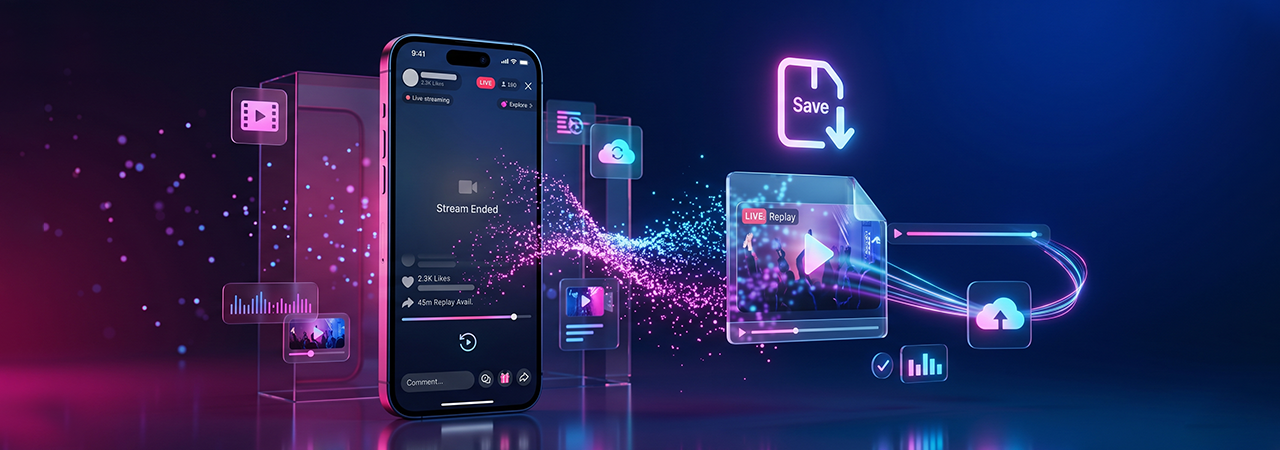
If you’re trying to save a TikTok LIVE after it ends, the answer depends on whose LIVE it was. If it was your own stream, TikTok provides an official replay workflow inside TikTok Studio. If it was someone else’s LIVE, saving it after the fact is far more limited and usually depends on whether the creator made it available or whether it was recorded while live.
For our broader workflow on standard videos, see the parent guide on how to download TikTok videos without watermark. This page stays focused on LIVE replay behavior specifically.
Direct Answer: Yes, you can save your own TikTok LIVE after the stream ends by opening TikTok Studio > LIVE > LIVE recordings and downloading the replay. TikTok says LIVE replays remain available to view and download for 30 days. For someone else’s ended LIVE, there is usually no official TikTok download path unless the creator reposted it or made clips available.
What You Need Before You Start
Before you try to save a TikTok LIVE, make sure you know which scenario you’re in:
| Scenario | Can you save it after the stream ends? | Best method |
|---|---|---|
| Your own TikTok LIVE | Yes | Download from TikTok Studio |
| Your client’s LIVE on a shared account | Usually yes | Log in to the account and download via LIVE recordings |
| Someone else’s LIVE | Usually no official method | Ask the creator, check if they posted clips, or use only authorized archives |
| LIVE older than 30 days | Usually no via TikTok replay workflow | Check personal backups or creator archives |
TikTok’s official support page is explicit that creators can access, download, clip, or delete their LIVE replays, and that those replays are available for 30 days.
Quick checklist
- You have access to the TikTok account that hosted the LIVE
- The stream ended less than 30 days ago
- The replay was not deleted
- Your app is updated
- You have enough device storage or a backup location ready
How to Save Your Own LIVE Replay in TikTok Studio
TikTok’s official method is straightforward:
Step 1: Open your profile
Open TikTok and tap Profile.
Step 2: Open TikTok Studio
Tap the menu icon and choose TikTok Studio.
Step 3: Go to LIVE
Tap LIVE at the top.
Step 4: Open LIVE recordings
Tap LIVE recordings to see past replay files.
Step 5: Download the replay
Find the stream you want and tap Download. TikTok also says you can clip or delete the replay from the same area.
Where People Get Stuck
The biggest confusion is that users often assume TikTok treats ended LIVEs like normal published videos. It doesn’t. A standard TikTok video can remain on-profile and be downloadable in several ways, while a LIVE replay is a time-limited creator asset stored under LIVE management tools. That difference is exactly why this page supports, rather than replaces, our main guide on downloading TikTok videos without watermark.
Common mistakes
- Waiting too long and missing the 30-day replay window
- Looking in the public video grid instead of LIVE recordings
- Assuming viewers can download someone else’s ended LIVE from TikTok
- Not backing up the replay after download
- Reposting a saved LIVE without checking copyright or permission
Can You Save Someone Else’s TikTok LIVE After It Ends?
In most cases, not through TikTok’s official replay system. TikTok’s documented LIVE replay workflow applies to the creator’s own replay access, not general public downloads. Community discussions consistently reflect the same practical limitation: if a LIVE has already ended and was not saved or reposted by the creator, recovery options are extremely limited.
What may still work
- The creator posted clips from the LIVE
- The creator uploaded the replay elsewhere
- You have permission and access to the host account
- An approved archiving workflow captured the LIVE while it was still live
What usually does not work
- Trying to “recover” a missed LIVE from TikTok after it vanished
- Expecting a public download button for ended LIVEs
- Assuming third-party downloaders can fetch a replay TikTok no longer exposes
Platform Limitations You Should Know
TikTok says LIVE replays are available to view and download for 30 days. That alone creates a built-in expiry problem for creators, agencies, moderators, and brands that use LIVE as part of their content strategy.
Important limitations
- 30-day retention window — If you do not download it in time, the official replay path may be gone.
- Creator-side access — The replay workflow is tied to the account that hosted the LIVE.
- Feature visibility may vary — TikTok notes that some creator tools vary by region, account status, and eligibility.
- Browser support is not the main replay path — TikTok Studio has web functionality for content management and analytics, but the official replay instructions are described in-app.
Troubleshooting: If Your LIVE Replay Is Missing
If your replay is not showing, work through these checks in order.
1) Confirm the stream is within 30 days
This is the first thing to verify. If the LIVE is older, it may no longer be available through TikTok’s replay window.
2) Check the correct path
Go to Profile > Menu > TikTok Studio > LIVE > LIVE recordings. Many users search in the wrong place.
3) Update the app
A stale app version can cause missing creator-tool panels or layout differences.
4) Confirm the replay was not deleted
TikTok lets creators delete replays after a stream ends.
5) Verify account access
If you are working on behalf of a brand or creator, make sure you are signed into the correct account.
6) Try the LIVE Center or creator tools area
TikTok notes that LIVE-related tools and resources are available through creator tooling, including replay-related functions.
Troubleshooting table
| Problem | Likely cause | Best next step |
|---|---|---|
| Replay not visible | Wrong menu path | Open TikTok Studio > LIVE > LIVE recordings |
| Replay disappeared | 30-day window expired | Check backups or creator exports |
| Can’t download | App/account issue | Update app, re-login, confirm permissions |
| Need someone else’s LIVE | No public replay access | Ask creator or look for authorized repost/clips |
| Need a shorter version | Full replay too large | Use TikTok’s clip feature before exporting |
Privacy & Safety Notes
TikTok states that LIVE videos are saved not only for replay access but also to support moderation and safety processes. That means creators should treat LIVE replays as managed account assets, not casual temporary files.
Best practices
- Download replays only from the official account or a trusted workflow
- Back up files to encrypted cloud storage if they matter for business or compliance
- Avoid sketchy third-party tools asking for full login credentials
- Remove sensitive personal data from reposted clips
- If minors, customers, or private conversations appeared on the stream, review privacy exposure before republishing
Copyright Considerations
Saving a file is one question. Using it is another.
TikTok’s copyright guidance is clear: users should not post or share another person’s copyrighted content without authorization unless a legally valid exception applies. That matters a lot for LIVEs because people often assume livestream content is “fair game” once it has aired. It is not.
Safe rule of thumb
- Your own LIVE: generally fine to save, archive, clip, and repurpose
- Client or employer LIVE: fine if you have permission and account access
- Another creator’s LIVE: get permission before reposting, excerpting, or publishing
- Commentary/review use: may be lawful in some jurisdictions, but should be assessed carefully
Warning: “Everyone else is reposting it” is not a reliable legal defense. TikTok explicitly notes that lack of knowledge is not a valid defense against copyright infringement.
Information Gain: What Most Competing Articles Miss
Most pages stop at “go to TikTok Studio and download.” That is incomplete. The real user problem is not just how to save a replay, but how to avoid losing valuable LIVE content.
Better creator workflow
For creators, brands, and agencies, the smarter post-LIVE process is:
- Download the replay immediately
- Clip high-value moments the same day
- Rename and organize the file
- Back it up to cloud storage
- Extract derivative content for Shorts, Reels, Stories, or help-center assets
- Log permissions if multiple hosts or guests appeared on stream
That workflow turns the 30-day replay window into a content repurposing opportunity rather than a deadline problem.
Real-World Scenarios
Scenario 1: Solo creator
You hosted a product Q&A on TikTok LIVE. The best move is to download the replay immediately, clip the best answers, and check our broader guide on downloading standard TikTok videos if you need help with regular posts.
Scenario 2: Agency managing brand LIVE
A social team should create a checklist: host account access, same-day replay export, cloud backup, clip extraction, and rights review for guest appearances.
Scenario 3: Viewer missed someone else’s LIVE
If the LIVE has ended and the creator did not repost it, there is often no official TikTok recovery method. The best next step is to request the clip from the creator or monitor whether they publish highlights later.
Edge Cases
If the LIVE ended abruptly
The replay may still appear, but verify it inside LIVE recordings before assuming it was lost.
If the replay exists but the file is too large
Clip the most useful moments first, then archive the full replay separately.
If you need an audio-only version
Download and archive the full replay first, then convert it later. Our TikTok MP3 downloader handles audio extraction from standard TikTok links.
If you need compliance records
For regulated industries or brand partnerships, store the replay with metadata: date, host, campaign name, guest permissions, and published derivatives.
Conclusion
If the TikTok LIVE was yours, the official path is simple: go to TikTok Studio > LIVE > LIVE recordings and download it before the 30-day window closes. If it was someone else’s LIVE, expectations should be much lower: you usually need the creator’s repost, permission, or a recording that happened while the stream was live. The biggest win is operational, not technical: build a repeatable same-day backup habit so valuable LIVE content does not disappear.
For standard (non-LIVE) TikTok videos, see our parent guide on how to download TikTok videos without watermark.
FAQ Section
How do I save my TikTok LIVE after it ends?
Open TikTok, go to Profile, tap the menu, open TikTok Studio, tap LIVE, then open LIVE recordings and download the replay.
How long does TikTok keep LIVE replays?
TikTok says LIVE replays are available to view and download for 30 days.
Can I watch someone else’s TikTok LIVE after it ends?
Sometimes only if the creator reposts clips or makes the content available elsewhere. There is usually no general public replay workflow inside TikTok’s official creator replay system.
Can I download someone else’s TikTok LIVE after it ends?
Usually not through TikTok’s official tools. If you need the content, ask the creator for permission or access.
Why is my TikTok LIVE replay missing?
The most common reasons are: the replay expired after 30 days, you are checking the wrong account, the replay was deleted, or you are not looking in LIVE recordings.
Can I clip a TikTok LIVE after the stream ends?
Yes. TikTok says creators can clip, download, or delete a LIVE replay after the broadcast.
Can I recover a TikTok LIVE after 30 days?
Usually not through TikTok’s replay workflow. Your best option is to rely on a previously downloaded backup or archived copy.
Is it legal to repost a saved TikTok LIVE?
Only if you own it, have permission, or have a valid legal exception such as fair use in your jurisdiction. TikTok prohibits infringing use of copyrighted content.
Does TikTok save LIVE videos automatically?
TikTok saves LIVE videos as replays for creator access and moderation-related purposes, but that does not mean all viewers get public replay access.
Where are TikTok LIVE recordings stored?
Inside the app workflow: Profile > Menu > TikTok Studio > LIVE > LIVE recordings.
Can I download a TikTok LIVE from desktop?
TikTok Studio has web features for content management and analytics, but TikTok’s replay download instructions are officially documented in-app.
What should creators do right after ending a LIVE?
Download the replay, clip standout moments, rename the file, and back it up to cloud storage before the replay window expires.