
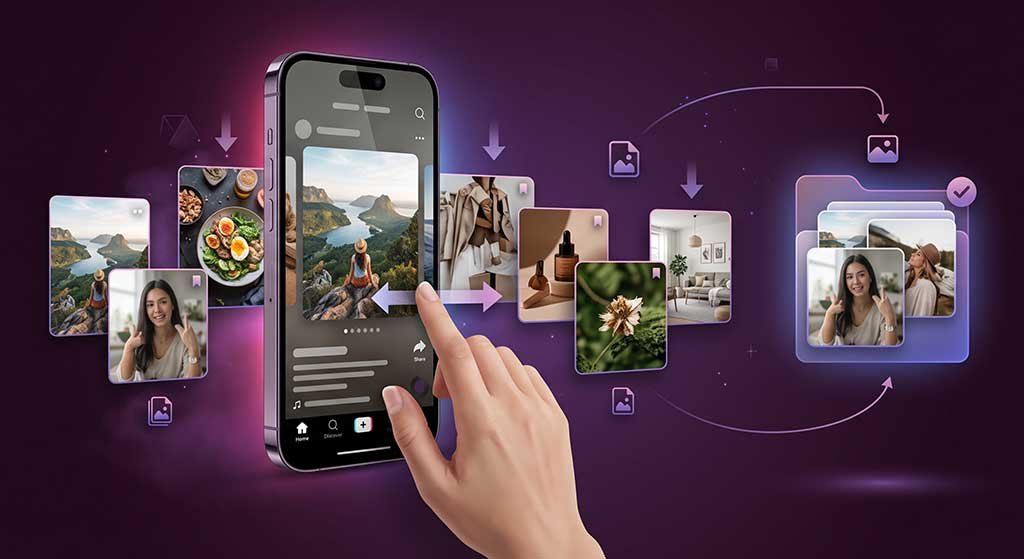
TikTok photo slideshows and standard video posts save differently, and most download guides treat them as the same thing — which is why so many users end up with the wrong output. If you want the individual still images from a slideshow, the path is different from downloading the slideshow as a video file with its soundtrack. This guide covers both scenarios and explains which approach fits which use case.
Two Different Things You Might Want
Before choosing a method, be clear about what output you actually need:
- Individual still images — the separate JPEG or PNG photos that make up the slideshow. Useful if you want to edit the images, use them in a presentation, or archive the original photos.
- The slideshow as a playable video — an MP4 file where the images play in sequence with the original soundtrack. Useful if you want to watch the slideshow offline, share it as a video, or use the full slideshow experience in another context.
These are distinct outputs, and the tools that produce them are different.
Saving Individual Still Images: TikTok’s Native Options
TikTok’s built-in save functionality is the most direct route to getting the individual photos from a photo post.
Save Photo (viewer — someone else’s post)
- Open the TikTok photo post on your device.
- Tap the Share button (arrow icon on the right side).
- Tap Save photo.
- TikTok saves the current photo (the one visible) to your camera roll.
To save all photos in a multi-image slideshow, swipe through each image and tap Save photo on each one. There is no batch-save option for all images at once through TikTok’s native interface.
Important caveat: If the creator has disabled downloads for their post, the Save photo option will not appear. This is a creator setting, not a glitch. TikTok also disables download options for accounts under 16 by default.
Save to device before posting (your own content)
If you are uploading your own photo post and want to keep an offline copy, TikTok recommends enabling Save to device before posting. This saves the individual photos to your device at the point of upload. Once a post is live, this option is no longer available retroactively.
Downloading the Slideshow as a Video: How That Works
If what you actually need is the slideshow experience — images in sequence with the accompanying music — the output format is MP4, not individual image files. A downloader that supports TikTok photo posts converts the slideshow into a single playable video file with the soundtrack synced.
ClipSaver supports TikTok photo posts and outputs the slideshow as a single MP4 with music. This is different from extracting the individual images — it produces a video file where the photos play as a slideshow with the original audio track.
To use this approach:
- Open the TikTok photo post and tap Share → Copy link.
- Go to clipsaver.pro and paste the link into the input field.
- Click Download. ClipSaver processes the photo post and returns a downloadable MP4.
- Download the file. It plays in any standard video player.
For a deeper look at the slideshow-with-music download workflow, including common failure points and troubleshooting steps, see our dedicated guide on how to download TikTok slideshows with music.
Choosing the Right Approach
| What you need | Best method | Output |
|---|---|---|
| Save one or more still images | TikTok’s native Save photo (per image) | Individual photos in camera roll |
| Save slideshow with music as playable file | Browser-based downloader (ClipSaver) | MP4 with synced audio |
| Keep a copy of your own content before posting | TikTok’s Save to device (before posting) | Original photos saved locally |
Common Problems and What Causes Them
Save photo button is missing
The creator has disabled downloads for that post, or the account is set to private. TikTok does not show download controls when the creator has turned them off. This is a platform permission, not a tool limitation.
Only one image saves, not all of them
TikTok’s native Save photo saves the currently visible image, not all images in the slideshow at once. Swipe to each photo and tap Save photo individually.
The downloader returns an error for the slideshow link
The most commonly reported cause is using the wrong URL. Use TikTok’s in-app Share button to copy the link rather than copying the URL from a browser’s address bar. The share link format is what slideshow-compatible downloaders expect.
The MP4 has no music
If the original TikTok audio was removed (for copyright or Community Guidelines reasons), the silence is in the source, not caused by the downloader. TikTok can remove sounds from posts after they are published — this shows as “Sound removed” in the app.
Frequently Asked Questions
Can I download all photos from a TikTok slideshow at once?
TikTok’s native interface saves photos one at a time — there is no built-in batch-save for all images in a multi-photo post. The alternative is to download the slideshow as an MP4, which captures all images in sequence with audio, and then extract individual frames if needed using a video tool.
Will photos saved from TikTok have a watermark?
Photos saved via TikTok’s native Save photo option may include a TikTok watermark. The MP4 output from a browser-based downloader like ClipSaver is watermark-free.
Does saving a photo notify the creator?
TikTok does not send creators a notification when someone saves one of their photos using the native Save photo option. This is consistent with TikTok’s behavior on standard video saves.
Can I download photos from a private TikTok account?
No. Private account content is not accessible to people who do not follow that account, and no downloader can access it. Any tool claiming otherwise requires your TikTok credentials, which is a serious security risk.